Figma vs Canva Tool Selector
Find Your Ideal Design Tool
Answer these questions to determine whether Figma or Canva is better for your project. Based on the article comparing these tools, you'll get a personalized recommendation.
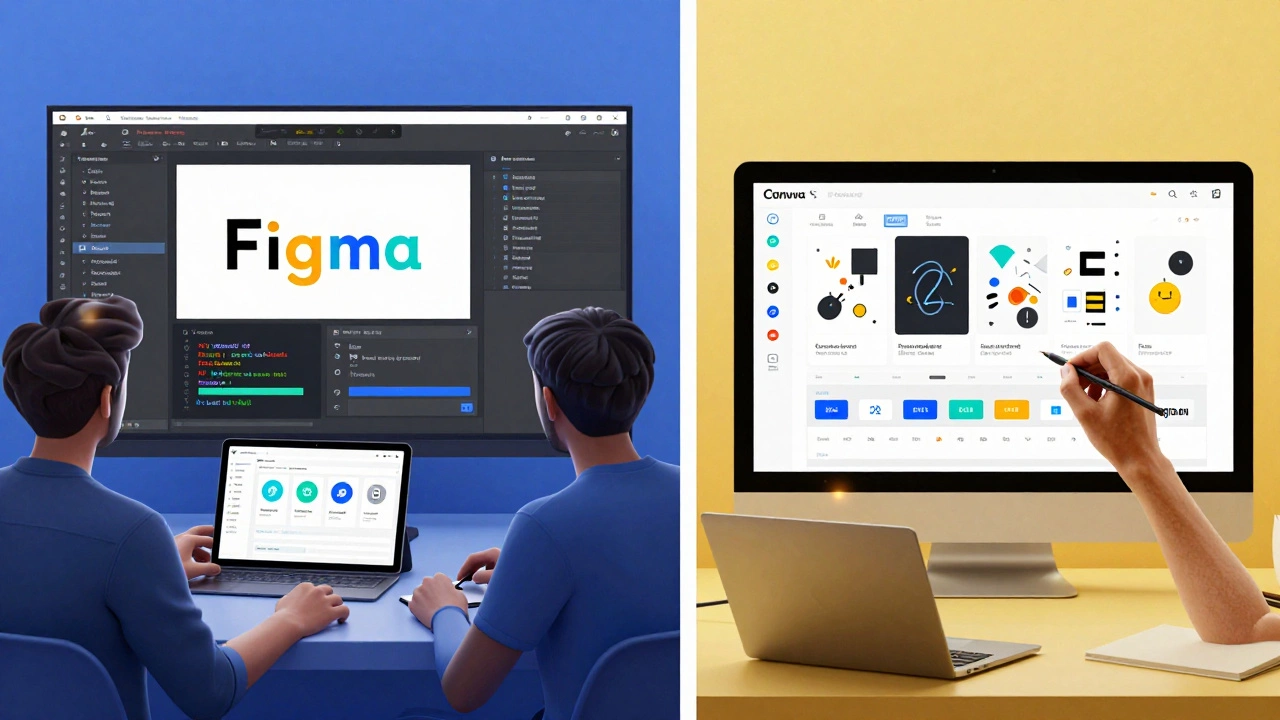
People often ask if Figma is just like Canva. They look at both tools, see drag-and-drop interfaces, colorful buttons, and pretty templates, and assume they’re the same. But if you’re designing a mobile app, a website, or a product interface - not just a social media post - Figma and Canva are worlds apart. One is built for teams building digital products. The other is built for anyone who needs to make a poster in ten minutes.
Figma is a professional design system
Figma was built from the ground up for UI/UX teams. It’s not just a drawing tool - it’s a collaborative design system. Designers use Figma to create interactive prototypes, define reusable components, and link screens together so stakeholders can click through a mockup like it’s a real app. Teams work on the same file in real time. One person edits a button, and everyone else sees it update instantly. That’s not magic - it’s how Figma is engineered.
Every element in Figma can be a component. You design a button once, save it as a component, and then use it everywhere. Change the color or padding in the master component, and every instance across your entire project updates automatically. That’s critical when you’re scaling a product. Canva doesn’t have this. You can copy a design element, sure. But if you want to change the font size across ten slides? You’ll do it ten times.
Canva is for quick, simple visuals
Canva is great if you’re a small business owner trying to make an Instagram ad. Or a teacher making a classroom handout. Or a marketer needing a LinkedIn banner before lunch. It’s packed with templates - thousands of them - for everything from resumes to birthday cards. The interface is simple. You click, you drag, you type. No layers panel to get lost in. No need to understand grids or constraints.
But Canva’s simplicity has limits. It’s not built for pixel-perfect layouts. You can’t easily align elements to a 4px grid. You can’t define design tokens like spacing scales or color palettes that auto-update. If you try to build a full app interface in Canva, you’ll end up with a messy collage of images and text boxes that don’t talk to each other. It’s fine for one-off graphics. It’s not fine for consistent, scalable digital products.
Prototyping: Figma wins by miles
Canva lets you link slides together. That’s it. Click a button on Slide 1, and it takes you to Slide 2. That’s not a prototype - that’s a slideshow. Figma lets you create true interactive prototypes. You can set hotspots on buttons, define transitions between screens, add micro-interactions like hover states, and even simulate scrolling. You can test how a user moves through a checkout flow or navigates a menu - all inside the tool.
Designers use Figma prototypes to show clients how an app feels, not just how it looks. Stakeholders can click through on their phone. They can see where users might get stuck. That’s how real product decisions get made. Canva doesn’t let you do any of that. If you need to test usability, you’re better off printing out sketches.
Collaboration: Real-time teamwork vs sharing links
In Figma, your whole team - designers, product managers, developers - can work on the same file at the same time. You can comment directly on a button. A developer can click on any element and get its exact CSS values: margin, font size, color code. Everything is documented. You don’t need to export specs or send PDFs.
Canva lets you share a link. That’s it. People can view or comment, but they can’t edit the design without having their own account and copy-pasting your template. There’s no live collaboration. No auto-saving changes. No design system sync. If you’re working with more than one person on anything beyond a simple graphic, Figma is the only tool that keeps everyone on the same page.
Exporting and handoff: Developers love Figma
When it’s time to build the design, Figma makes handoff effortless. Developers can inspect any element and copy CSS, Swift, or Android code directly from the interface. They can see spacing, typography, and image sizes without guessing. Figma even generates style guides automatically.
Canva? You export a PNG or JPG. That’s it. No layers. No fonts. No dimensions. No code. If you send a Canva file to a developer, they’ll have to rebuild the entire thing from scratch - pixel by pixel. That’s not handoff. That’s a waste of time.
Who should use what?
If you’re a solo creator making social media graphics, flyers, or presentations - Canva is perfect. It’s fast, free, and easy. You don’t need to learn anything complex. You just need a result yesterday.
If you’re part of a team building apps, websites, or digital products - Figma is non-negotiable. It’s the industry standard. Startups, tech giants, and design agencies all use it. It’s free for individuals, and teams pay for advanced features like version history and team libraries. But even the free version is powerful enough to handle professional work.
There’s no point in forcing Canva to do Figma’s job. You’ll waste hours. And there’s no reason to use Figma just to make a birthday invite. You’ll spend more time learning the tool than you would typing in Canva.
Real-world examples
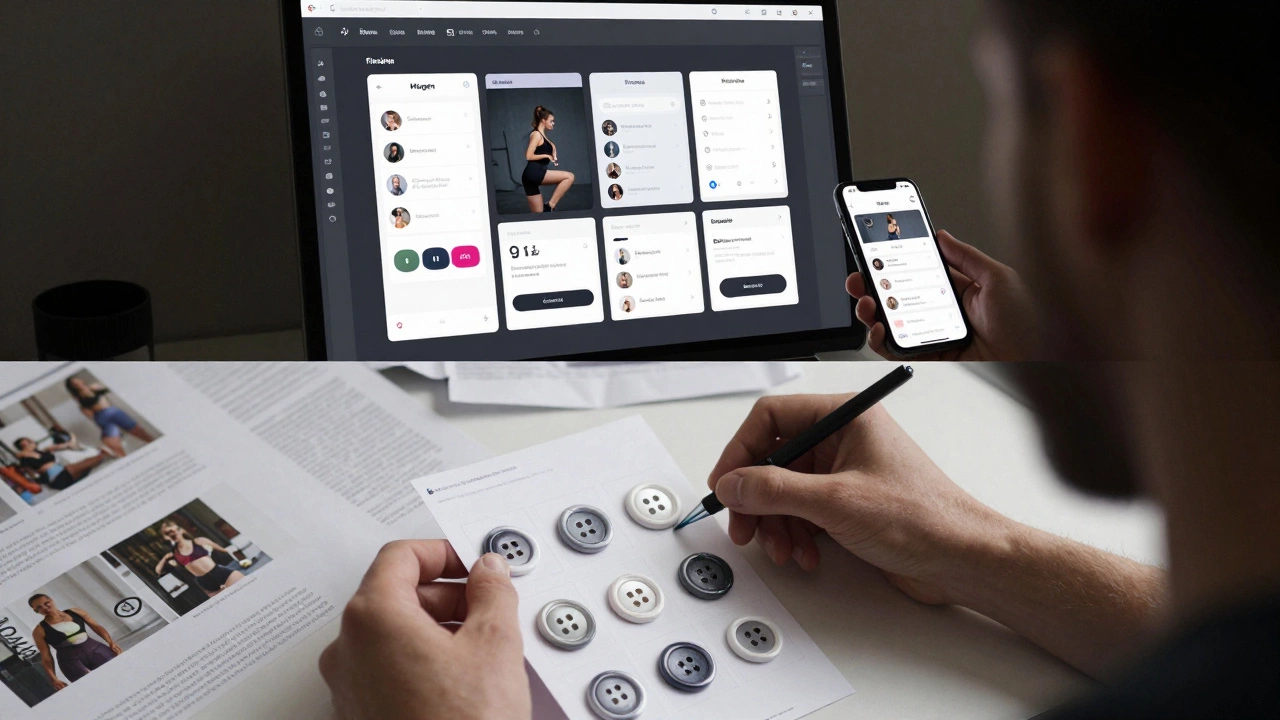
Imagine you’re designing a fitness app. You need a login screen, a dashboard with charts, a workout tracker with swipeable cards, and a settings menu. You build it in Figma. You create components for buttons, cards, and icons. You link the screens so the team can test the flow. You add comments for developers. You export the design specs. Done.
Now try that in Canva. You’d make ten separate designs. You’d copy-paste the same button five times. You’d have no way to update them all at once. You’d export five different PNGs. You’d send them to a developer with a note: “Make it look like this.” They’d spend two days guessing what you meant.
That’s the difference.
Price and accessibility
Canva’s free plan is generous. You get access to most templates and basic tools. The Pro plan ($12.99/month) unlocks premium assets and brand kits. It’s affordable for individuals and small teams.
Figma’s free plan includes unlimited files, 3 projects, and 2 editors. That’s enough for most solo designers. The Team plan ($15/month per editor) adds version history, team libraries, and advanced prototyping. It’s pricier than Canva, but you’re paying for professional-grade collaboration - not just more templates.
Both tools offer education discounts. Figma is used in design schools worldwide. Canva is used in high school classrooms. Each serves its audience.
Bottom line
Figma isn’t like Canva. They don’t compete. They serve different purposes. Figma is for building digital products. Canva is for making quick visuals. Trying to use one for the other’s job will frustrate you. Choose based on what you’re trying to create - not what looks prettier on the homepage.
If you’re designing interfaces, you need Figma. If you’re designing posters, Canva is fine. There’s no shame in using the right tool for the job.
Can I use Canva for UI design?
You can, but you shouldn’t. Canva lacks components, design systems, and developer handoff features. It’s fine for simple mockups or one-off screens, but not for building scalable, consistent interfaces. Teams using Canva for UI end up with inconsistent designs and wasted time re-creating elements.
Is Figma hard to learn for beginners?
Figma has a steeper learning curve than Canva, but it’s not hard. If you’ve used Photoshop or Illustrator, you’ll recognize the interface. The free tutorials on Figma’s website walk you through basics in under an hour. Most designers pick up the essentials in a day. The real challenge isn’t learning the tool - it’s learning design thinking.
Can Figma replace Photoshop?
For UI/UX work, yes. Figma is now the standard for digital design. Photoshop is still used for photo editing, complex illustrations, and print design - but not for building websites or apps. Most design teams have moved away from Photoshop for interface work because Figma is faster, collaborative, and built for screens.
Does Canva support vector graphics?
Canva has basic vector tools - you can resize shapes and change paths - but it doesn’t let you edit anchor points or create custom paths like Illustrator or Figma. If you need precise vector control, Canva isn’t the right tool. Figma’s vector editing is full-featured and works like Adobe Illustrator, but in a browser.
Which tool is better for freelancers?
If you’re doing branding, social media, or print work - Canva saves you time. If you’re building websites, apps, or digital products for clients - Figma is essential. Many freelancers use both: Canva for quick client assets, Figma for full interface projects. It’s not either/or - it’s about matching the tool to the deliverable.