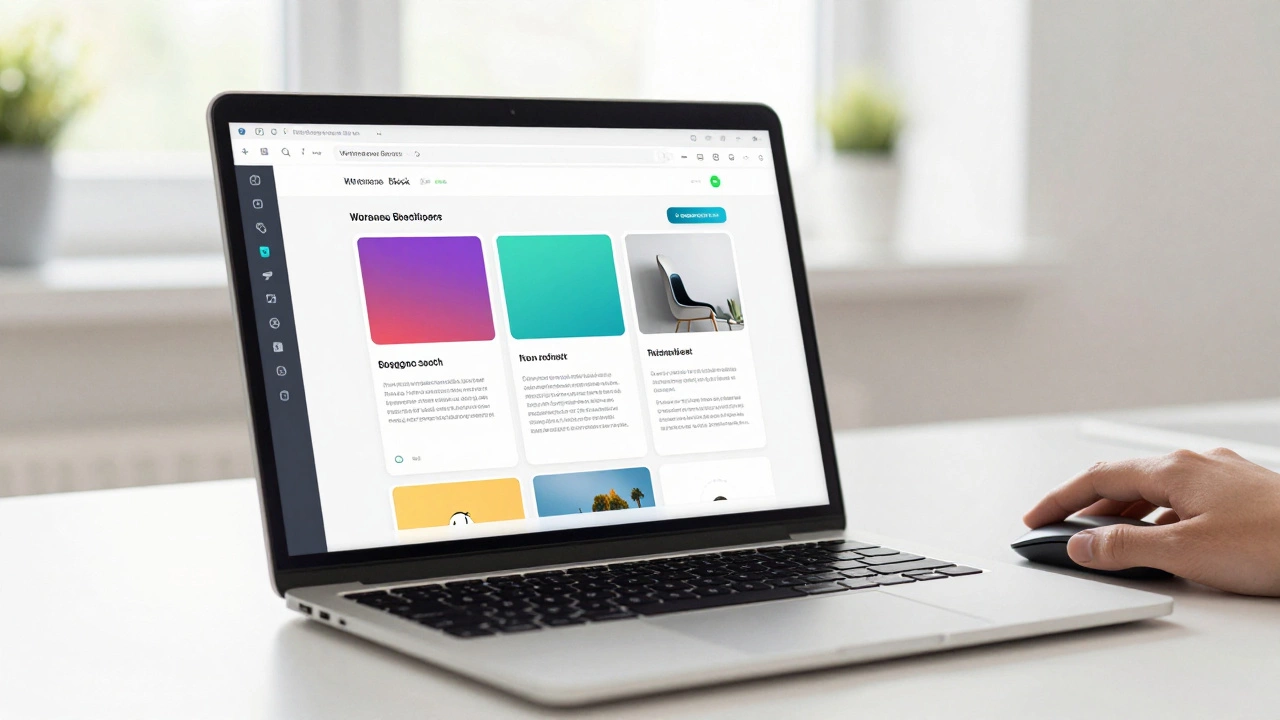
No-Code WordPress Site Builder Checklist
Follow these steps to build your first professional website without writing a single line of code. Click each step as you complete it.
You have successfully built your first no-code WordPress site!
You want to build a website. You hear about WordPress is the world’s most popular content management system powering over 40% of the web. But then you hit the wall: "Do I need to know how to code?" The short answer is no. You absolutely do not need to write a single line of HTML, CSS, or PHP to build a professional, high-performing website on WordPress today.
The landscape has changed dramatically in the last few years. What used to require a developer and a budget now requires a mouse, some patience, and the right tools. If you are looking to start a blog, launch an online store, or create a portfolio, you can do it all visually. Let’s look at exactly how this works, what tools you need, and where the limits lie.
How Visual Editing Changed Everything
Gone are the days when building a site meant staring at a text editor and guessing which tag closes which div. Modern WordPress relies heavily on visual interfaces that mimic the software you already use, like Microsoft Word or Canva.
At the heart of this shift is the Gutenberg Block Editor is the default block-based editor introduced in WordPress 5.0 that allows users to build pages by dragging and dropping modular content blocks. Instead of writing code, you add "blocks." Want a headline? Click the heading block. Want an image? Click the image block. Each block has its own settings panel on the side where you can change colors, fonts, and spacing with sliders and pickers.
This approach democratizes design. You don’t need to understand the underlying structure of the web; you just need to understand layout. If you can arrange furniture in a room, you can arrange blocks on a page. This is the foundation of learning WordPress without coding.
Visual Page Builders: The Power Tools
While Gutenberg is great, many users prefer dedicated page builders for more creative freedom. These plugins act as layers on top of WordPress, giving you even more control without touching code.
- Elementor: This is arguably the most popular page builder. It offers a drag-and-drop interface where you see changes in real-time. You can pull widgets from a sidebar, drop them onto your canvas, and adjust their position pixel-by-pixel. It handles responsive design (how your site looks on mobile) through simple toggles rather than complex media queries.
- Divi: Divi takes a similar approach but focuses heavily on pre-made templates. If you don’t want to design from scratch, you can choose a layout pack and swap out images and text. It’s ideal for those who want a polished look quickly.
- Beaver Builder: Known for being lightweight and fast, Beaver Builder is a bit more structured. It doesn’t give you infinite freedom to place elements anywhere, which actually helps keep your site clean and organized.
These tools remove the fear of breaking your site. In traditional coding, one missing semicolon can crash a page. In Elementor or Divi, if you make a mistake, you just undo it. This safety net is crucial for beginners.
No-Code Theme Customization
Your theme determines the overall look of your site. In the past, changing a theme’s header color or footer layout required editing style sheets (CSS). Now, most premium themes come with powerful customizers.
Themes like Astra is a lightweight, highly customizable WordPress theme known for its speed and compatibility with page builders. or GeneratePress is a performance-focused WordPress theme that offers extensive customization options through its companion plugin. allow you to modify global settings. You can set your primary font, define your brand colors, and adjust the width of your content area-all through visual controls.
Many of these themes also support "starter sites." These are pre-built websites that you can import with one click. Once imported, you simply replace the placeholder content with your own. This means you aren’t starting from a blank slate; you’re refining a professional design.
| Tool | Best For | Learning Curve | Key Feature |
|---|---|---|---|
| Elementor | Creative designs | Medium | Real-time visual editing |
| Gutenberg | Simplicity & speed | Easy | Built into WordPress |
| Divi | Template lovers | Medium | Vast library of layouts |
| Astra Theme | Fast starter sites | Easy | One-click demo imports |
Adding Functionality Without Code
A website isn’t just about looks; it’s about function. You might need a contact form, a booking system, or an online store. Good news: plugins handle this.
For forms, WPForms is a drag-and-drop form builder plugin for WordPress that allows users to create contact forms, surveys, and payment forms without coding. lets you build complex forms by dragging fields onto a canvas. You set up email notifications and spam protection through checkboxes. No PHP required.
If you want to sell products, WooCommerce is the leading open-source e-commerce plugin for WordPress, enabling users to turn their site into a full-featured online store. integrates seamlessly. You add products, set prices, and configure shipping zones using standard menus. The checkout process is handled automatically. You can even accept payments via Stripe or PayPal by simply entering your API keys-no server-side coding needed.
For SEO, plugins like Yoast SEO is a comprehensive search engine optimization plugin that guides users through optimizing content for search engines. provide traffic lights (red, orange, green) to tell you if your content is optimized. They guide you step-by-step, explaining what meta descriptions are and why they matter, without asking you to edit any code.
When Do You Actually Need Code?
It is important to be realistic. While you can do 95% of tasks without code, there are edge cases where hitting a wall is possible.
- Unique Interactions: If you want a specific animation that triggers only when a user scrolls past a certain point while holding down a key, standard page builders won’t do that. That requires JavaScript.
- Custom Integrations: Connecting your WordPress site to a niche third-party API that doesn’t have a plugin might require PHP knowledge to fetch and display data correctly.
- Performance Optimization: As your site grows, page builders can slow it down. Optimizing database queries or minifying assets often involves technical tweaks that go beyond visual settings.
However, for 99% of small businesses, bloggers, and portfolios, these edge cases never arise. You can run a successful business without ever opening a code editor.
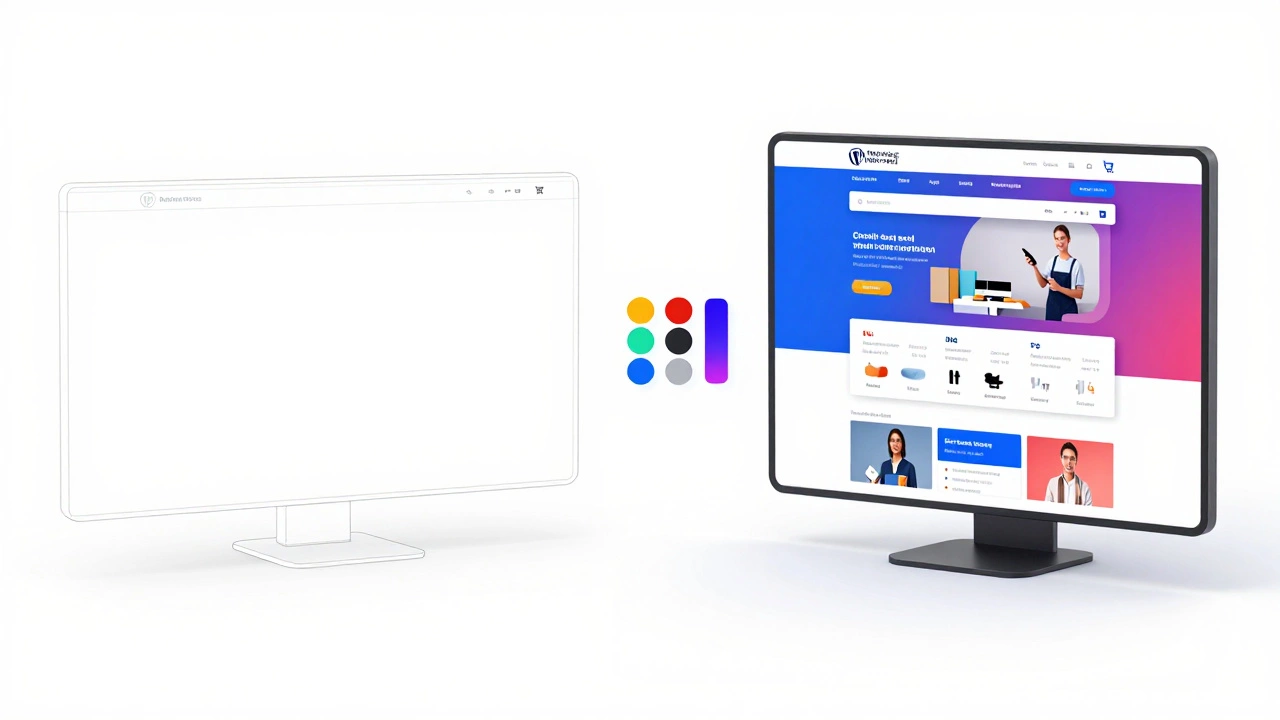
Step-by-Step: Your First No-Code Site
Ready to start? Here is a practical path to follow.
- Get Hosting: Choose a host like Bluehost or SiteGround that offers one-click WordPress installation. This sets up the technical backend for you.
- Install a Theme: Go to Appearance > Themes > Add New. Search for "Astra" or "Kadence." Install and activate it.
- Import a Starter Template: Most themes have a library of free starter sites. Pick one that matches your industry (e.g., "Photography" or "Restaurant"). Import it.
- Edit with a Builder: Install Elementor (free version is fine). Open your homepage. You will see the template. Click on any text to change it. Drag new blocks in to add more sections.
- Add Essential Plugins: Install WPForms for contact, Yoast SEO for search visibility, and UpdraftPlus for backups.
- Publish: Preview your site on mobile and desktop. When it looks good, hit publish.
This entire process can take less than a day. You haven’t written a line of code, yet you have a live, functional website.
Tips for Success Without Code
To avoid common pitfalls, keep these rules in mind.
- Keep it Simple: Don’t install ten different page builders. Stick to one. Mixing tools creates conflicts and slows down your site.
- Use Child Themes: Even without coding, use a child theme if your main theme updates frequently. This ensures your customizations don’t get wiped out during updates.
- Backups are Non-Negotiable: Since you are making changes visually, mistakes happen. Use a backup plugin so you can restore your site to a previous state instantly.
- Learn Design Basics: Not knowing code doesn’t mean you don’t need to know design. Learn about whitespace, contrast, and typography. These principles apply regardless of the tool you use.
The barrier to entry for web creation has never been lower. WordPress has evolved into a platform where creativity matters more than syntax. You don’t need to be a programmer to be a publisher. Start building, and let the visual tools handle the rest.
Is WordPress free if I don't code?
Yes, the core WordPress software is free and open-source. However, you will need to pay for web hosting and a domain name. Some page builders and themes have premium versions with advanced features, but their free versions are often sufficient for beginners.
Can I make an online store without coding?
Absolutely. By installing the WooCommerce plugin, you can add product pages, shopping carts, and checkout processes entirely through visual interfaces. You just need to enter product details and connect a payment gateway like PayPal or Stripe.
Will my site be slow if I use page builders?
Page builders can add some weight to your site compared to hand-coded themes, but modern builders like Elementor and Gutenberg are optimized for speed. Using a good hosting provider and caching plugins will ensure your site loads quickly for visitors.
Do I need to learn HTML eventually?
Not necessarily. Many people build and manage successful websites for years without learning HTML. However, understanding basic HTML can help you troubleshoot issues or customize specific elements that visual editors don't cover.
What is the easiest page builder for beginners?
Elementor is widely considered the most beginner-friendly due to its intuitive drag-and-drop interface and large community support. Gutenberg, the default editor, is also very easy to learn if you prefer a simpler, block-based approach.