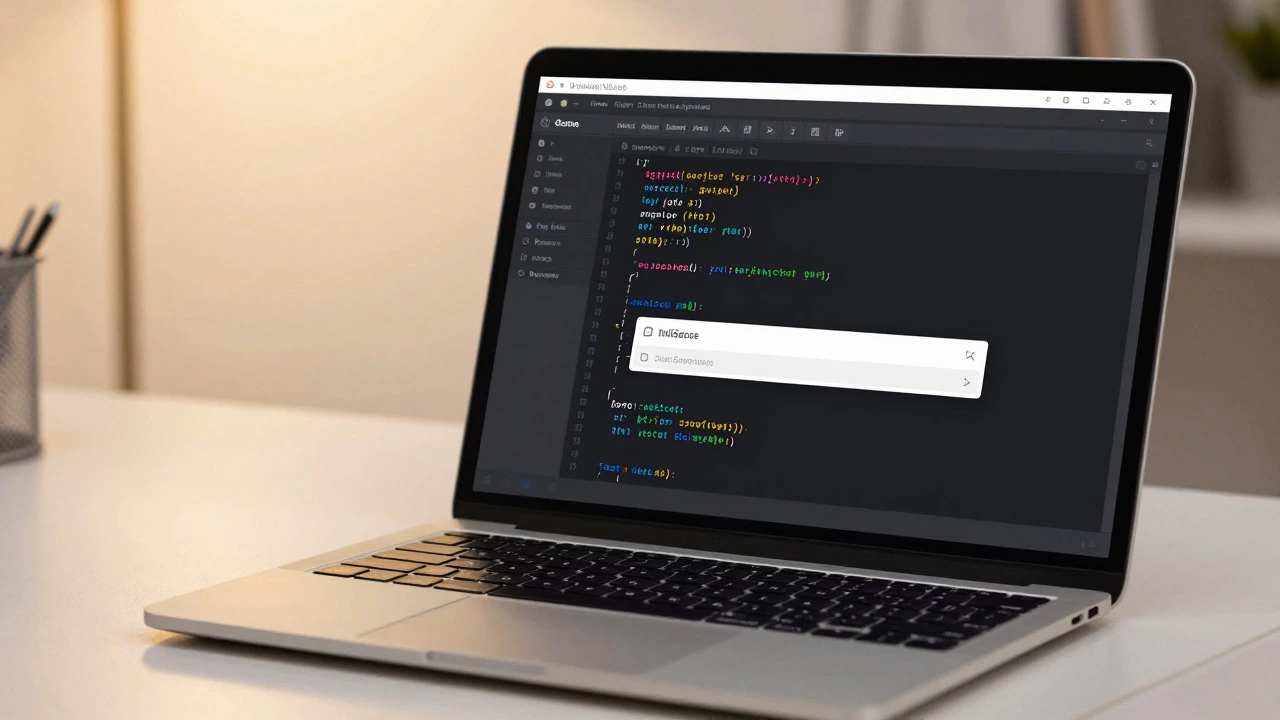
VS Code Beginner Setup Simulator
Follow these steps to configure your environment efficiently. Click a step to mark it as complete.
1. Download & Install VS Code
Go to the official Microsoft website and install the version for your OS (Windows, Mac, or Linux).
2. Create a Project Folder
Create a folder named 'my-portfolio' on your computer and open it in VS Code using File > Open Folder.
3. Create Essential Files
Inside the Explorer panel, create three files: index.html, style.css, and script.js.
4. Use Emmet for Boilerplate
Open index.html, type ! and press Enter. This generates the standard HTML5 structure instantly.
5. Install 'Live Server'
Click the Extensions icon (left sidebar), search for "Live Server," and click Install. Right-click your HTML file to run it.
You just finished your first tutorial on HTML and CSS. You are excited to build something real. Then you hear everyone talking about Visual Studio Code. It is the most popular code editor in the world right now. But before you download it, you have a valid concern: Is it actually easy for a beginner, or will you get lost in settings and extensions immediately?
The short answer is yes. VS Code is a lightweight but powerful source-code editor made by Microsoft that runs on Windows, Linux and macOS. It was designed with accessibility in mind, offering features like IntelliSense (smart completions) out of the box without requiring complex configuration. However, its popularity comes with a catch. Because it does so much, it can feel overwhelming if you try to use every feature at once.
Why VS Code Wins for Beginners
When you start coding, friction is your enemy. If you spend more time fixing your tool than writing code, you will quit. VS Code removes this friction in three specific ways.
1. It is free and open-source. Unlike some professional Integrated Development Environments (IDEs) that cost hundreds of dollars, VS Code costs nothing. There are no trial periods that expire. No watermarks. This allows beginners to experiment freely without financial pressure.
2. The interface is clean. When you open VS Code for the first time, you see a simple window. On the left, there is a sidebar with icons. In the middle, you write code. At the bottom, there is a terminal. It looks like a text editor, which is comforting if you are used to Notepad or TextEdit. It does not bombard you with fifty different panels immediately.
3. IntelliSense helps you type less.
This is the killer feature. As you type, VS Code suggests words and code snippets. If you are writing JavaScript and type conso, it automatically offers console.log(). For a beginner who has not memorized syntax yet, this is like having a tutor looking over your shoulder. It reduces typos and teaches you correct spelling of commands naturally.
The "Extension Trap": Where Beginners Get Stuck
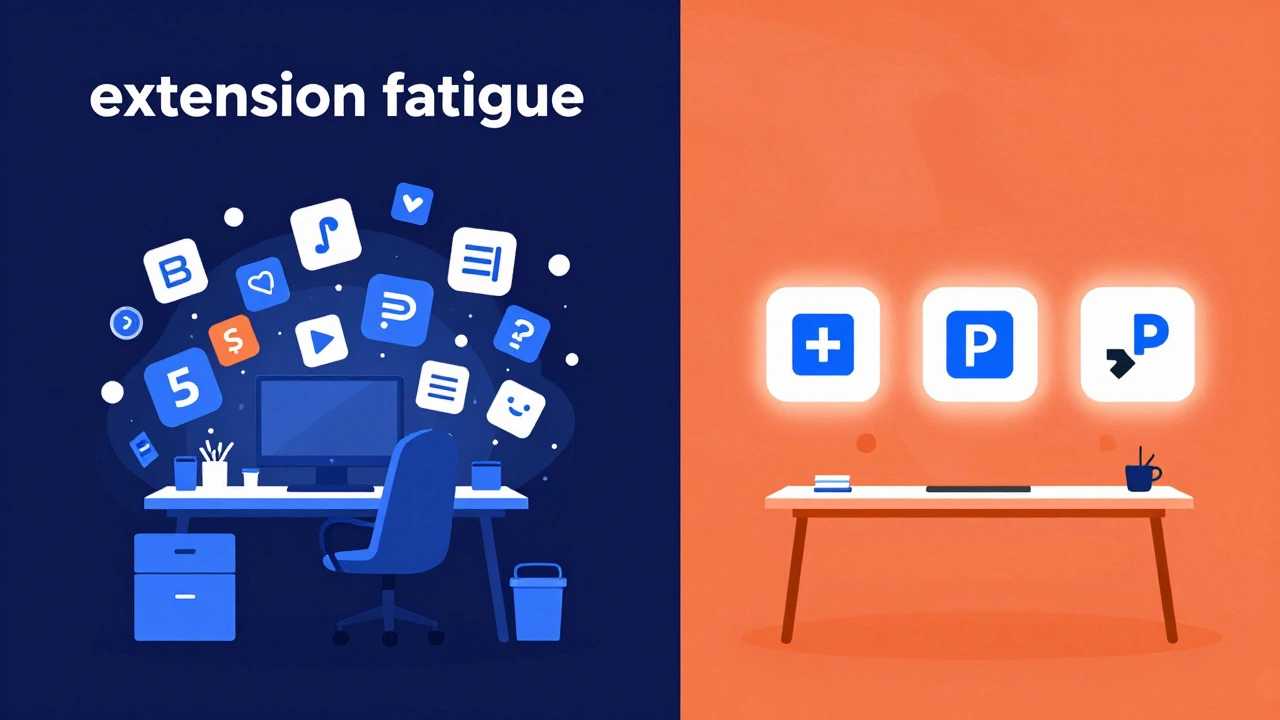
Here is where the story gets complicated. VS Code is not an all-in-one product; it is a platform. Its power comes from extensions. While this makes it flexible, it creates a common pitfall for new developers known as "extension fatigue."
You might think, "I need a theme, a linter, a formatter, a git helper, and a live server." So you install ten extensions in one hour. Suddenly, your editor is slow. Icons appear everywhere. You don't know what half of them do. This happens to almost everyone.
To avoid this, follow the "Just-in-Time" learning rule. Only install an extension when you have a specific problem that cannot be solved otherwise. Do not install Prettier until you care about code formatting. Do not install ESLint until you want to catch errors automatically. Start with zero extensions, then add only these three essentials:
- Live Server: Allows you to preview your HTML/CSS changes instantly in the browser.
- ESLint: Helps find bugs in your JavaScript code.
- Prettier: Automatically formats your code to look neat and consistent.
Setting Up Your Environment Without Tears
Let's walk through a realistic setup process. Imagine you are building a simple portfolio website using HTML, CSS, and basic JavaScript. Here is how you configure VS Code to support this workflow efficiently.
- Download and Install: Go to the official Microsoft website and download the version for your operating system (Windows, Mac, or Linux). Run the installer.
- Create a Folder: Never edit loose files. Create a folder named
my-portfolioand open it in VS Code usingFile > Open Folder. - Create Files: Inside the explorer panel, create
index.html,style.css, andscript.js. - Use Emmet Abbreviations: Type
!in your HTML file and press Enter. VS Code will generate a standard HTML5 boilerplate structure instantly. This saves you ten minutes of typing head tags and meta descriptions. - Install Live Server: Click the Extensions icon (the square blocks on the left), search for "Live Server," and click Install. Right-click your HTML file and choose "Open with Live Server." Now, any change you save reflects immediately in your browser.
Comparing VS Code to Other Tools
Is VS Code the only option? No. Understanding why you chose it helps you stick with it. Let's compare it to two other common choices for beginners.
| Feature | VS Code | Sublime Text | Atom (Deprecated) |
|---|---|---|---|
| Cost | Free | Free (Evaluation) | Free (No longer maintained) |
| Setup Difficulty | Low | Medium (Manual config) | High (Slow startup) |
| Extensions | Huge Marketplace | Limited Package Control | Large but outdated |
| Performance | Good | Excellent (Very fast) | Poor |
| Built-in Git Support | Yes | No (Needs plugin) | Yes |
Sublime Text is faster, but it requires you to manually configure many things that VS Code gives you for free. Atom was beloved by beginners for years, but Microsoft discontinued it in late 2022, recommending users switch to VS Code. Therefore, VS Code is currently the safest bet for long-term learning.
Essential Keyboard Shortcuts to Learn First
You do not need to memorize everything. But knowing these five shortcuts will make you feel like a pro within the first week. They work across Windows, Mac, and Linux (with slight variations for Command vs. Control).
- Toggle Terminal:
Ctrl + `(Backtick). This opens the integrated terminal at the bottom. You will use this to run servers or check versions. - Command Palette:
Ctrl + Shift + P. This is the Swiss Army knife. If you forget how to do something, open this and type what you want to do (e.g., "Format Document"). - Multi-Cursor Editing: Hold
Alt(Option on Mac) and click anywhere. You can type in multiple places at once. Great for renaming variables or editing lists. - Move Line Up/Down:
Alt + Arrow Keys. Instead of cutting and pasting lines, just slide them up or down. - Find and Replace:
Ctrl + H. Essential for changing a variable name across an entire file safely.

Troubleshooting Common Beginner Issues
Even with a user-friendly tool, things break. Here are the three most common issues new users face and how to fix them quickly.
Issue 1: My colors are missing. If your code looks like plain black text, you likely haven't set a color theme. Go to File > Preferences > Color Theme (or use the Command Palette) and select a dark theme like "Dark+" or "One Dark Pro." Syntax highlighting is crucial for reading code.
Issue 2: IntelliSense isn't working. This usually happens if VS Code doesn't recognize the file language. Look at the bottom right corner of the window. Does it say "Plain Text"? Click it and select "HTML" or "JavaScript." Once the language mode is set, smart suggestions will return.
Issue 3: The editor is slow. Check your extensions. Disable any extension you haven't used in the last week. Also, ensure you aren't opening a massive project folder (like your entire Downloads folder) in VS Code. Keep your workspace limited to the current project directory.
Next Steps: Moving Beyond the Basics
Once you are comfortable with the basics, you will naturally encounter needs for more advanced tools. This is when you explore concepts like Git integration directly within VS Code, allowing you to commit and push code without leaving the editor. You might also look into Debugging, which lets you pause your code execution to inspect variables step-by-step.
Remember, the goal is not to master VS Code. The goal is to master coding. VS Code is just the pen you write with. Don't let the tool distract you from the craft. Start simple, keep your workspace clean, and add complexity only when you need it.
Is VS Code better than Visual Studio for beginners?
Yes, absolutely. Visual Studio (the full IDE) is heavy, resource-intensive, and primarily designed for large-scale enterprise applications, often focusing on C# or .NET. VS Code is lightweight, starts instantly, and handles web technologies (HTML, CSS, JavaScript) much more gracefully for newcomers. Stick to VS Code unless you are specifically studying .NET framework development.
Do I need to know Python to use VS Code?
No. VS Code is language-agnostic. It works equally well for JavaScript, Python, Java, Go, PHP, and more. You simply install the relevant extension for the language you are learning. If you are starting with web development, you will primarily use JavaScript and HTML/CSS support, which are built-in.
Can I use VS Code on a Chromebook?
Not natively as a desktop app, because Chromebooks run Linux containers or Android apps, and the native VS Code binary isn't available there. However, you can use VS Code for Web, a browser-based version that offers most core features. Alternatively, many Chromebooks now support Linux apps, allowing you to install the Debian package of VS Code via the terminal.
How do I sync my settings between computers?
VS Code has a built-in feature called Settings Sync. Sign in with your Microsoft account (GitHub or Microsoft login) and turn on Settings Sync in the menu. This will automatically transfer your themes, extensions, keyboard shortcuts, and snippets to any other computer where you log in. It saves hours of reconfiguration.
Is VS Code safe from privacy concerns?
Generally, yes. Microsoft collects some telemetry data to improve the product, but you can disable this easily in the settings under "Telemetry." For most beginners, the convenience outweighs minor privacy trade-offs. If you are extremely privacy-conscious, you can explore forks like VSCodium, which strips out Microsoft's telemetry, though they may lack some seamless updates.